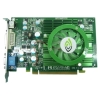
F

Here is where the computer is not just a "stupid machine"
Scroll Up
start.. image1
 
image2
 
image3
 
image4
 
image5
 
image6
 
image7
 
image8
 
image9
 
image10
 
end.
Scroll Down

// this tells jquery to run the function below once the DOM is ready $(document).ready(function() { // choose text for the show/hide link var showText="Show the hidden text"; var hideText="Hide the text"; // create the toggle link $("#hide_this").before("

"+showText+""); // hide the content $('#hide_this').hide(); // capture clicks on the newly created link $('a#toggle_link').click(function() { // change the link text if ($('a#toggle_link').text()==showText) { $('a#toggle_link').text(hideText); } else { $('a#toggle_link').text(showText); } // toggle the display $('#hide_this').toggle('slow'); // return false so any link destination is not followed return false; }); });

Showing posts with label HW: CPU. Show all posts

How Motherboards Work

Browse the article How Motherboards Work
Introduction to How Motherboards Work
If you've ever taken the case off of a computer, you've seen the one piece of equipment that ties everything together -- the motherboard. A motherboard allows all the parts of your computer to receive power and communicate with one another. Motherboards have come a long way in the last twenty years. The first motherboards held very few actual components. The first IBM PC motherboard had only a processor and card slots. Users plugged components like floppy drive controllers and memory into the slots.


Today, motherboards typically boast a wide variety of built-in features, and they directly affect a computer's capabilities and potential for upgrades. In this article, we'll look at the general components of a motherboard. Then, we'll closely examine five points that dramatically affect what a computer can do.


Search for Motherboards at Alibaba - the world’s largest online base of suppliers and importers.
 
­
Form Factor
A motherboard by itself is useless, but a computer has to have one to operate. The motherboard's main job is to hold the computer's microprocessor chip and let everything else connect to it. Everything that runs the computer or enhances its performance is either part of the motherboard or plugs into it via a slot or port.
A modern motherboard
Photo courtesy Consumer Guide Products
A modern motherboard.
See more motherboard pictures.

The shape and layout of a motherboard is called the form factor. The form factor affects where individual components go and the shape of the computer's case. There are several specific form factors that most PC motherboards use so that they can all fit in standard cases. For a comparison of form factors, past and present, check out Motherboards.org.
The form factor is just one of the many standards that apply to motherboards. Some of the other standards include:
  • The socket for the microprocessor determines what kind of Central Processing Unit (CPU) the motherboard uses.
  • The chipset is part of the motherboard's logic system and is usually made of two parts -- the northbridge and the southbridge. These two "bridges" connect the CPU to other parts of the computer.
  • The Basic Input/Output System (BIOS) chip controls the most basic functions of the computer and performs a self-test every time you turn it on. Some systems feature dual BIOS, which provides a backup in case one fails or in case of error during updating.
  • The real time clock chip is a battery-operated chip that maintains basic settings and the system time.
The slots and ports found on a motherboard include:
Some motherboards also incorporate newer technological advances:
  • Redundant Array of Independent Discs (RAID) controllers allow the computer to recognize multiple drives as one drive.
  • PCI Express is a newer protocol that acts more like a network than a bus. It can eliminate the need for other ports, including the AGP port.
  • Rather than relying on plug-in cards, some motherboards have on-board sound, networking, video or other peripheral support.

A Socket 754 motherboard
Photo courtesy Consumer Guide Products
A Socket 754 motherboard
Many people think of the CPU as one of the most important parts of a computer. We'll look at how it affects the rest of the computer in the next section.

Sockets and CPUs
The CPU is the first thing that comes to mind when many people think about a computer's speed and performance. The faster the processor, the faster the computer can think. In the early days of PC computers, all processors had the same set of pins that would connect the CPU to the motherboard, called the Pin Grid Array (PGA). These pins fit into a socket layout called Socket 7. This meant that any processor would fit into any motherboard.

A socket 939 motherboard
Photo courtesy HowStuffWorks Shopper
A Socket 939 motherboard
Today, however, CPU manufacturers Intel and AMD use a variety of PGAs, none of which fit into Socket 7. As microprocessors advance, they need more and more pins, both to handle new features and to provide more and more power to the chip.
Current socket arrangements are often named for the number of pins in the PGA. Commonly used sockets are:
  • Socket 478 - for older Pentium and Celeron processors
  • Socket 754 - for AMD Sempron and some AMD Athlon processors
  • Socket 939 - for newer and faster AMD Athlon processors
  • Socket AM2 - for the newest AMD Athlon processors
  • Socket A - for older AMD Athlon processors

A Socket LGA755 motherboard
Photo courtesy HowStuffWorks Shopper
A Socket LGA755 motherboard
The newest Intel CPU does not have a PGA. It has an LGA, also known as Socket T. LGA stands for Land Grid Array. An LGA is different from a PGA in that the pins are actually part of the socket, not the CPU.
Anyone who already has a specific CPU in mind should select a motherboard based on that CPU. For example, if you want to use one of the new multi-core chips made by Intel or AMD, you will need to select a motherboard with the correct socket for those chips. CPUs simply will not fit into sockets that don't match their PGA.
The CPU communicates with other elements of the motherboard through a chipset. We'll look at the chipset in more detail next.

Chipsets
The chipset is the "glue" that connects the microprocessor to the rest of the motherboard and therefore to the rest of the computer. On a PC, it consists of two basic parts -- the northbridge and the southbridge. All of the various components of the computer communicate with the CPU through the chipset.
The northbridge and southbridge
Photo courtesy HowStuffWorks Shopper
The northbridge and southbridge
The northbridge connects directly to the processor via the front side bus (FSB). A memory controller is located on the northbridge, which gives the CPU fast access to the memory. The northbridge also connects to the AGP or PCI Express bus and to the memory itself.
The southbridge is slower than the northbridge, and information from the CPU has to go through the northbridge before reaching the southbridge. Other busses connect the southbridge to the PCI bus, the USB ports and the IDE or SATA hard disk connections.
Chipset selection and CPU selection go hand in hand, because manufacturers optimize chipsets to work with specific CPUs. The chipset is an integrated part of the motherboard, so it cannot be removed or upgraded. This means that not only must the motherboard's socket fit the CPU, the motherboard's chipset must work optimally with the CPU.
Next, we'll look at busses, which, like the chipset, carry information from place to place.


Bus Speed
A bus is simply a circuit that connects one part of the motherboard to another. The more data a bus can handle at one time, the faster it allows information to travel. The speed of the bus, measured in megahertz (MHz), refers to how much data can move across the bus simultaneously.
Busses connect different parts of the motherboard to one another
Busses connect different parts of the motherboard
to one another

Bus speed usually refers to the speed of the front side bus (FSB), which connects the CPU to the northbridge. FSB speeds can range from 66 MHz to over 800 MHz. Since the CPU reaches the memory controller though the northbridge, FSB speed can dramatically affect a computer's performance.
Here are some of the other busses found on a motherboard:
  • The back side bus connects the CPU with the level 2 (L2) cache, also known as secondary or external cache. The processor determines the speed of the back side bus.
  • The memory bus connects the northbridge to the memory.
  • The IDE or ATA bus connects the southbridge to the disk drives.
  • The AGP bus connects the video card to the memory and the CPU. The speed of the AGP bus is usually 66 MHz.
  • The PCI bus connects PCI slots to the southbridge. On most systems, the speed of the PCI bus is 33 MHz. Also compatible with PCI is PCI Express, which is much faster than PCI but is still compatible with current software and operating systems. PCI Express is likely to replace both PCI and AGP busses.
The faster a computer's bus speed, the faster it will operate -- to a point. A fast bus speed cannot make up for a slow processor or chipset.
Now let's look at memory and how it affects the motherboard's speed.


Memory and Other Features
We've established that the speed of the processor itself controls how quickly a computer thinks. The speed of the chipset and busses controls how quickly it can communicate with other parts of the computer. The speed of the RAM connection directly controls how fast the computer can access instructions and data, and therefore has a big effect on system performance. A fast processor with slow RAM is going nowhere.
The amount of memory available also controls how much data the computer can have readily available. RAM makes up the bulk of a computer's memory. The general rule of thumb is the more RAM the computer has, the better.

184-pin DDR DIMM RAM
Photo courtesy HowStuffWorks Shopper
184-pin DDR DIMM RAM

RAM
For information about different types of RAM, check out How RAM Works.
Much of the memory available today is dual data rate (DDR) memory. This means that the memory can transmit data twice per cycle instead of once, which makes the memory faster. Also, most motherboards have space for multiple memory chips, and on newer motherboards, they often connect to the northbridge via a dual bus instead of a single bus. This further reduces the amount of time it takes for the processor to get information from the memory.
200-pin DDR SODIMM RAM
Photo courtesy HowStuffWorks Shopper
200-pin DDR SODIMM RAM
A motherboard's memory slots directly affect what kind and how much memory is supported. Just like other components, the memory plugs into the slot via a series of pins. The memory module must have the right number of pins to fit into the slot on the motherboard.


64 MB SDRAM SIMM
Photo courtesy HowStuffWorks Shopper
64MB SDRAM SIMM
In the earliest days of motherboards, virtually everything other than the processor came on a card that plugged into the board. Now, motherboards feature a variety of onboard accessories such as LAN support, video, sound support and RAID controllers. Motherboards with all the bells and whistles are convenient and simple to install. There are motherboards that have everything you need to create a complete computer -- all you do is stick the motherboard in a case and add a hard disk, a CD drive and a power supply. You have a completely operational computer on a single board.
For many average users, these built-in features provide ample support for video and sound. For avid gamers and people who do high-intensity graphic or computer-aided design (CAD) work, however, separate video cards provide much better performance.

How Microprocessors Work

Browse the article How Microprocessors Work
Introduction to How Microprocessors Work
The computer you are using to read this page uses a microprocessor to do its work. The microprocessor is the heart of any normal computer, whether it is a desktop machine, a server or a laptop. The microprocessor you are using might be a Pentium, a K6, a PowerPC, a Sparc or any of the many other brands and types of microprocessors, but they all do approximately the same thing in approximately the same way.


Intel 4004 chip
A microprocessor -- also known as a CPU or central processing unit -- is a complete computation engine that is fabricated on a single chip. The first microprocessor was the Intel 4004, introduced in 1971. The 4004 was not very powerful -- all it could do was add and subtract, and it could only do that 4 bits at a time. But it was amazing that everything was on one chip. Prior to the 4004, engineers built computers either from collections of chips or from discrete components (transistors wired one at a time). The 4004 powered one of the first portable electronic calculators. If you have ever wondered what the microprocessor in your computer is doing, or if you have ever wondered about the differences between types of microprocessors, then read on. In this article, you will learn how fairly simple digital logic techniques allow a computer to do its job, whether its playing a game or spell checking a document!


Search for Microprocessors at Alibaba - the world’s largest online base of suppliers and importers.
­
Microprocessor Progression: Intel
Intel 8080
The Intel 8080 was the first microprocessor in a home computer. See more microprocessor pictures.
The first microprocessor to make it into a home computer was the Intel 8080, a complete 8-bit computer on one chip, introduced in 1974. The first microprocessor to make a real splash in the market was the Intel 8088, introduced in 1979 and incorporated into the IBM PC (which first appeared around 1982). If you are familiar with the PC market and its history, you know that the PC market moved from the 8088 to the 80286 to the 80386 to the 80486 to the Pentium to the Pentium II to the Pentium III to the Pentium 4. All of these microprocessors are made by Intel and all of them are improvements on the basic design of the 8088. The Pentium 4 can execute any piece of code that ran on the original 8088, but it does it about 5,000 times faster! The following table helps you to understand the differences between the different processors that Intel has introduced over the years.

Name
Date
Transistors
Microns
Clock speed
Data width
MIPS
8080
1974
6,000
6
2 MHz
8 bits
0.64
8088
1979
29,000
3
5 MHz
16 bits
8-bit bus
0.33
80286
1982
134,000
1.5
6 MHz
16 bits
1
80386
1985
275,000
1.5
16 MHz
32 bits
5
80486
1989
1,200,000
1
25 MHz
32 bits
20
Pentium
1993
3,100,000
0.8
60 MHz
32 bits
64-bit bus
100
Pentium II
1997
7,500,000
0.35
233 MHz
32 bits
64-bit bus
~300
Pentium III
1999
9,500,000
0.25
450 MHz
32 bits
64-bit bus
~510
Pentium 4
2000
42,000,000
0.18
1.5 GHz
32 bits
64-bit bus
~1,700
Pentium 4 "Prescott"
2004
125,000,000
0.09
3.6 GHz
32 bits
64-bit bus
~7,000

Compiled from The Intel Microprocessor Quick Reference Guide and TSCP Benchmark Scores
Information about this table:
    What's a Chip?
    A chip is also called an integrated circuit. Generally it is a small, thin piece of silicon onto which the transistors making up the microprocessor have been etched. A chip might be as large as an inch on a side and can contain tens of millions of transistors. Simpler processors might consist of a few thousand transistors etched onto a chip just a few millimeters square.
  • The date is the year that the processor was first introduced. Many processors are re-introduced at higher clock speeds for many years after the original release date.
  • Transistors is the number of transistors on the chip. You can see that the number of transistors on a single chip has risen steadily over the years.
  • Microns is the width, in microns, of the smallest wire on the chip. For comparison, a human hair is 100 microns thick. As the feature size on the chip goes down, the number of transistors rises.
  • Clock speed is the maximum rate that the chip can be clocked at. Clock speed will make more sense in the next section.
  • Data Width is the width of the ALU. An 8-bit ALU can add/subtract/multiply/etc. two 8-bit numbers, while a 32-bit ALU can manipulate 32-bit numbers. An 8-bit ALU would have to execute four instructions to add two 32-bit numbers, while a 32-bit ALU can do it in one instruction. In many cases, the external data bus is the same width as the ALU, but not always. The 8088 had a 16-bit ALU and an 8-bit bus, while the modern Pentiums fetch data 64 bits at a time for their 32-bit ALUs.
  • MIPS stands for "millions of instructions per second" and is a rough measure of the performance of a CPU. Modern CPUs can do so many different things that MIPS ratings lose a lot of their meaning, but you can get a general sense of the relative power of the CPUs from this column.
From this table you can see that, in general, there is a relationship between clock speed and MIPS. The maximum clock speed is a function of the manufacturing process and delays within the chip. There is also a relationship between the number of transistors and MIPS. For example, the 8088 clocked at 5 MHz but only executed at 0.33 MIPS (about one instruction per 15 clock cycles). Modern processors can often execute at a rate of two instructions per clock cycle. That improvement is directly related to the number of transistors on the chip and will make more sense in the next section.

Microprocessor Logic

Photo courtesy Intel Corporation
Intel Pentium 4 processor
To understand how a microprocessor works, it is helpful to look inside and learn about the logic used to create one. In the process you can also learn about assembly language -- the native language of a microprocessor -- and many of the things that engineers can do to boost the speed of a processor. A microprocessor executes a collection of machine instructions that tell the processor what to do. Based on the instructions, a microprocessor does three basic things:
  • Using its ALU (Arithmetic/Logic Unit), a microprocessor can perform mathematical operations like addition, subtraction, multiplication and division. Modern microprocessors contain complete floating point processors that can perform extremely sophisticated operations on large floating point numbers.
  • A microprocessor can move data from one memory location to another.
  • A microprocessor can make decisions and jump to a new set of instructions based on those decisions.
There may be very sophisticated things that a microprocessor does, but those are its three basic activities. The following diagram shows an extremely simple microprocessor capable of doing those three things:

This is about as simple as a microprocessor gets. This microprocessor has:
  • An address bus (that may be 8, 16 or 32 bits wide) that sends an address to memory
  • A data bus (that may be 8, 16 or 32 bits wide) that can send data to memory or receive data from memory
  • An RD (read) and WR (write) line to tell the memory whether it wants to set or get the addressed location
  • A clock line that lets a clock pulse sequence the processor
  • A reset line that resets the program counter to zero (or whatever) and restarts execution
Let's assume that both the address and data buses are 8 bits wide in this example. Here are the components of this simple microprocessor:
  • Registers A, B and C are simply latches made out of flip-flops. (See the section on "edge-triggered latches" in How Boolean Logic Works for details.)
  • The address latch is just like registers A, B and C.
  • The program counter is a latch with the extra ability to increment by 1 when told to do so, and also to reset to zero when told to do so.
  • The ALU could be as simple as an 8-bit adder (see the section on adders in How Boolean Logic Works for details), or it might be able to add, subtract, multiply and divide 8-bit values. Let's assume the latter here.
  • The test register is a special latch that can hold values from comparisons performed in the ALU. An ALU can normally compare two numbers and determine if they are equal, if one is greater than the other, etc. The test register can also normally hold a carry bit from the last stage of the adder. It stores these values in flip-flops and then the instruction decoder can use the values to make decisions.
  • There are six boxes marked "3-State" in the diagram. These are tri-state buffers. A tri-state buffer can pass a 1, a 0 or it can essentially disconnect its output (imagine a switch that totally disconnects the output line from the wire that the output is heading toward). A tri-state buffer allows multiple outputs to connect to a wire, but only one of them to actually drive a 1 or a 0 onto the line.
  • The instruction register and instruction decoder are responsible for controlling all of the other components.
Helpful Articles
If you are new to digital logic, you may find the following articles helpful in understanding this section:


  • How Bytes and Bits Work

  • How Boolean Logic Works

  • How Electronic Gates Work

  • Although they are not shown in this diagram, there would be control lines from the instruction decoder that would:
    • Tell the A register to latch the value currently on the data bus
    • Tell the B register to latch the value currently on the data bus
    • Tell the C register to latch the value currently output by the ALU
    • Tell the program counter register to latch the value currently on the data bus
    • Tell the address register to latch the value currently on the data bus
    • Tell the instruction register to latch the value currently on the data bus
    • Tell the program counter to increment
    • Tell the program counter to reset to zero
    • Activate any of the six tri-state buffers (six separate lines)
    • Tell the ALU what operation to perform
    • Tell the test register to latch the ALU's test bits
    • Activate the RD line
    • Activate the WR line
    Coming into the instruction decoder are the bits from the test register and the clock line, as well as the bits from the instruction register.

    Microprocessor Memory
    The previous section talked about the address and data buses, as well as the RD and WR lines. These buses and lines connect either to RAM or ROM -- generally both. In our sample microprocessor, we have an address bus 8 bits wide and a data bus 8 bits wide. That means that the microprocessor can address (28) 256 bytes of memory, and it can read or write 8 bits of the memory at a time. Let's assume that this simple microprocessor has 128 bytes of ROM starting at address 0 and 128 bytes of RAM starting at address 128.

    ROM chip
    ROM stands for read-only memory. A ROM chip is programmed with a permanent collection of pre-set bytes. The address bus tells the ROM chip which byte to get and place on the data bus. When the RD line changes state, the ROM chip presents the selected byte onto the data bus.


    RAM chip
    RAM stands for random-access memory. RAM contains bytes of information, and the microprocessor can read or write to those bytes depending on whether the RD or WR line is signaled. One problem with today's RAM chips is that they forget everything once the power goes off. That is why the computer needs ROM. By the way, nearly all computers contain some amount of ROM (it is possible to create a simple computer that contains no RAM -- many microcontrollers do this by placing a handful of RAM bytes on the processor chip itself -- but generally impossible to create one that contains no ROM). On a PC, the ROM is called the BIOS (Basic Input/Output System). When the microprocessor starts, it begins executing instructions it finds in the BIOS. The BIOS instructions do things like test the hardware in the machine, and then it goes to the hard disk to fetch the boot sector (see How Hard Disks Work for details). This boot sector is another small program, and the BIOS stores it in RAM after reading it off the disk. The microprocessor then begins executing the boot sector's instructions from RAM. The boot sector program will tell the microprocessor to fetch something else from the hard disk into RAM, which the microprocessor then executes, and so on. This is how the microprocessor loads and executes the entire operating system.


    Microprocessor Instructions
    Even the incredibly simple microprocessor shown in the previous example will have a fairly large set of instructions that it can perform. The collection of instructions is implemented as bit patterns, each one of which has a different meaning when loaded into the instruction register. Humans are not particularly good at remembering bit patterns, so a set of short words are defined to represent the different bit patterns. This collection of words is called the assembly language of the processor. An assembler can translate the words into their bit patterns very easily, and then the output of the assembler is placed in memory for the microprocessor to execute. Here's the set of assembly language instructions that the designer might create for the simple microprocessor in our example:
    • LOADA mem - Load register A from memory address
    • LOADB mem - Load register B from memory address
    • CONB con - Load a constant value into register B
    • SAVEB mem - Save register B to memory address
    • SAVEC mem - Save register C to memory address
    • ADD - Add A and B and store the result in C
    • SUB - Subtract A and B and store the result in C
    • MUL - Multiply A and B and store the result in C
    • DIV - Divide A and B and store the result in C
    • COM - Compare A and B and store the result in test
    • JUMP addr - Jump to an address
    • JEQ addr - Jump, if equal, to address
    • JNEQ addr - Jump, if not equal, to address
    • JG addr - Jump, if greater than, to address
    • JGE addr - Jump, if greater than or equal, to address
    • JL addr - Jump, if less than, to address
    • JLE addr - Jump, if less than or equal, to address
    • STOP - Stop execution
    If you have read How C Programming Works, then you know that this simple piece of C code will calculate the factorial of 5 (where the factorial of 5 = 5! = 5 * 4 * 3 * 2 * 1 = 120):
      a=1;
      f=1;
      while (a <= 5)
      {
          f = f * a;
          a = a + 1;
      }
      
    At the end of the program's execution, the variable f contains the factorial of 5.
    Assembly Language
    A C compiler translates this C code into assembly language. Assuming that RAM starts at address 128 in this processor, and ROM (which contains the assembly language program) starts at address 0, then for our simple microprocessor the assembly language might look like this:

      // Assume a is at address 128
      // Assume F is at address 129
      0   CONB 1      // a=1;
      1   SAVEB 128
      2   CONB 1      // f=1;
      3   SAVEB 129
      4   LOADA 128   // if a > 5 the jump to 17
      5   CONB 5
      6   COM
      7   JG 17
      8   LOADA 129   // f=f*a;
      9   LOADB 128
      10  MUL
      11  SAVEC 129
      12  LOADA 128   // a=a+1;
      13  CONB 1
      14  ADD
      15  SAVEC 128
      16  JUMP 4       // loop back to if
      17  STOP
      
    ROM
    So now the question is, "How do all of these instructions look in ROM?" Each of these assembly language instructions must be represented by a binary number. For the sake of simplicity, let's assume each assembly language instruction is given a unique number, like this:
    • LOADA - 1
    • LOADB - 2
    • CONB - 3
    • SAVEB - 4
    • SAVEC mem - 5
    • ADD - 6
    • SUB - 7
    • MUL - 8
    • DIV - 9
    • COM - 10
    • JUMP addr - 11
    • JEQ addr - 12
    • JNEQ addr - 13
    • JG addr - 14
    • JGE addr - 15
    • JL addr - 16
    • JLE addr - 17
    • STOP - 18
    The numbers are known as opcodes. In ROM, our little program would look like this:
      // Assume a is at address 128
      // Assume F is at address 129
      Addr opcode/value
      0    3             // CONB 1
      1    1
      2    4             // SAVEB 128
      3    128
      4    3             // CONB 1
      5    1
      6    4             // SAVEB 129
      7    129
      8    1             // LOADA 128
      9    128
      10   3             // CONB 5
      11   5
      12   10            // COM
      13   14            // JG 17
      14   31
      15   1             // LOADA 129
      16   129
      17   2             // LOADB 128
      18   128
      19   8             // MUL
      20   5             // SAVEC 129
      21   129
      22   1             // LOADA 128
      23   128
      24   3             // CONB 1
      25   1
      26   6             // ADD
      27   5             // SAVEC 128
      28   128
      29   11            // JUMP 4
      30   8
      31   18            // STOP
      
    You can see that seven lines of C code became 18 lines of assembly language, and that became 32 bytes in ROM.
    Decoding
    The instruction decoder needs to turn each of the opcodes into a set of signals that drive the different components inside the microprocessor. Let's take the ADD instruction as an example and look at what it needs to do:
    1. During the first clock cycle, we need to actually load the instruction. Therefore the instruction decoder needs to:
      • activate the tri-state buffer for the program counter
      • activate the RD line
      • activate the data-in tri-state buffer
      • latch the instruction into the instruction register
    2. During the second clock cycle, the ADD instruction is decoded. It needs to do very little:
      • set the operation of the ALU to addition
      • latch the output of the ALU into the C register
    3. During the third clock cycle, the program counter is incremented (in theory this could be overlapped into the second clock cycle).
    Every instruction can be broken down as a set of sequenced operations like these that manipulate the components of the microprocessor in the proper order. Some instructions, like this ADD instruction, might take two or three clock cycles. Others might take five or six clock cycles.

    Microprocessor Performance and Trends
    The number of transistors available has a huge effect on the performance of a processor. As seen earlier, a typical instruction in a processor like an 8088 took 15 clock cycles to execute. Because of the design of the multiplier, it took approximately 80 cycles just to do one 16-bit multiplication on the 8088. With more transistors, much more powerful multipliers capable of single-cycle speeds become possible. More transistors also allow for a technology called pipelining. In a pipelined architecture, instruction execution overlaps. So even though it might take five clock cycles to execute each instruction, there can be five instructions in various stages of execution simultaneously. That way it looks like one instruction completes every clock cycle.
    Many modern processors have multiple instruction decoders, each with its own pipeline. This allows for multiple instruction streams, which means that more than one instruction can complete during each clock cycle. This technique can be quite complex to implement, so it takes lots of transistors.
    Trends
    The trend in processor design has primarily been toward full 32-bit ALUs with fast floating point processors built in and pipelined execution with multiple instruction streams. The newest thing in processor design is 64-bit ALUs, and people are expected to have these processors in their home PCs in the next decade. There has also been a tendency toward special instructions (like the MMX instructions) that make certain operations particularly efficient, and the addition of hardware virtual memory support and L1 caching on the processor chip. All of these trends push up the transistor count, leading to the multi-million transistor powerhouses available today. These processors can execute about one billion instructions per second!


    64-bit Microprocessors
    Sixty-four-bit processors have been with us since 1992, and in the 21st century they have started to become mainstream. Both Intel and AMD have introduced 64-bit chips, and the Mac G5 sports a 64-bit processor. Sixty-four-bit processors have 64-bit ALUs, 64-bit registers, 64-bit buses and so on.

    Photo courtesy AMD
    One reason why the world needs 64-bit processors is because of their enlarged address spaces. Thirty-two-bit chips are often constrained to a maximum of 2 GB or 4 GB of RAM access. That sounds like a lot, given that most home computers currently use only 256 MB to 512 MB of RAM. However, a 4-GB limit can be a severe problem for server machines and machines running large databases. And even home machines will start bumping up against the 2 GB or 4 GB limit pretty soon if current trends continue. A 64-bit chip has none of these constraints because a 64-bit RAM address space is essentially infinite for the foreseeable future -- 2^64 bytes of RAM is something on the order of a billion gigabytes of RAM.
    With a 64-bit address bus and wide, high-speed data buses on the motherboard, 64-bit machines also offer faster I/O (input/output) speeds to things like hard disk drives and video cards. These features can greatly increase system performance.
    Servers can definitely benefit from 64 bits, but what about normal users? Beyond the RAM solution, it is not clear that a 64-bit chip offers "normal users" any real, tangible benefits at the moment. They can process data (very complex data features lots of real numbers) faster. People doing video editing and people doing photographic editing on very large images benefit from this kind of computing power. High-end games will also benefit, once they are re-coded to take advantage of 64-bit features. But the average user who is reading e-mail, browsing the Web and editing Word documents is not really using the processor in that way.

    How Graphics Cards Work

    Browse the article How Graphics Cards Work
    Introduction to How Graphics Cards Work
    The images you see on your monitor are made of tiny dots called pixels. At most common resolution settings, a screen displays over a million pixels, and the computer has to decide what to do with every one in order to create an image. To do this, it needs a translator -- something to take binary data from the CPU and turn it into a picture you can see. Unless a computer has graphics capability built into the motherboard, that translation takes place on the graphics card.


    A graphics card's job is complex, but its principles and components are easy to understand. In this article, we will look at the basic parts of a video card and what they do. We'll also examine the factors that work together to make a fast, efficient graphics card.

    a computer-drawn hand
    The graphics card creates a wire frame image, then fills it in and adds textures and shading.

    Graphics Card Basics
    Think of a computer as a company with its own art department. When people in the company want a piece of artwork, they send a request to the art department. The art department decides how to create the image and then puts it on paper. The end result is that someone's idea becomes an actual, viewable picture.

    a labeled image of a graphics card (connections, processor and memory)
    Photo courtesy of HowStuffWorks Shopper
    The four main components of a graphics card are connections for the motherboard and monitor, a processor, and memory.
    A graphics card works along the same principles. The CPU, working in conjunction with software applications, sends information about the image to the graphics card. The graphics card decides how to use the pixels on the screen to create the image. It then sends that information to the monitor through a cable.

    The Evolution of Graphics Cards
    Graphics cards have come a long way since IBM introduced the first one in 1981. Called a Monochrome Display Adapter (MDA), the card provided text-only displays of green or white text on a black screen. Now, the minimum standard for new video cards is Video Graphics Array (VGA), which allows 256 colors. With high-performance standards like Quantum Extended Graphics Array (QXGA), video cards can display millions of colors at resolutions of up to 2040 x 1536 pixels.
    Creating an image out of binary data is a demanding process. To make a 3-D image, the graphics card first creates a wire frame out of straight lines. Then, it rasterizes the image (fills in the remaining pixels). It also adds lighting, texture and color. For fast-paced games, the computer has to go through this process about sixty times per second. Without a graphics card to perform the necessary calculations, the workload would be too much for the computer to handle.
    The graphics card accomplishes this task using four main components:
    • A motherboard connection for data and power
    • A processor to decide what to do with each pixel on the screen
    • Memory to hold information about each pixel and to temporarily store completed pictures
    • A monitor connection so you can see the final result
    Next, we'll look at the processor and memory in more detail.


    Search for Graphics Cards at Alibaba - the world’s largest online base of suppliers and importers.
    ­
    Processor and Memory
    Like a motherboard, a graphics card is a printed circuit board that houses a processor and RAM. It also has an input/output system (BIOS) chip, which stores the card's settings and performs diagnostics on the memory, input and output at startup. A graphics card's processor, called a graphics processing unit (GPU), is similar to a computer's CPU. A GPU, however, is designed specifically for performing the complex mathematical and geometric calculations that are necessary for graphics rendering. Some of the fastest GPUs have more transistors than the average CPU. A GPU produces a lot of heat, so it is usually located under a heat sink or a fan.

    a heat sink
    Photo courtesy of HowStuffWorks Shopper
    A heat sink or fan keeps a graphics card's processor from overheating.
    In addition to its processing power, a GPU uses special programming to help it analyze and use data. ATI and nVidia produce the vast majority of GPUs on the market, and both companies have developed their own enhancements for GPU performance. To improve image quality, the processors use:
    • Full scene anti aliasing (FSAA), which smoothes the edges of 3-D objects
    • Anisotropic filtering (AF), which makes images look crisper

    Integrated Graphics
    Many motherboards have integrated graphics capabilities and function without a separate graphics card. These motherboards handle 2-D images easily, so they are ideal for productivity and Internet applications. Plugging a separate graphics card into one of these motherboards overrides the onboard graphics functions.
    Each company has also developed specific techniques to help the GPU apply colors, shading, textures and patterns.
    As the GPU creates images, it needs somewhere to hold information and completed pictures. It uses the card's RAM for this purpose, storing data about each pixel, its color and its location on the screen. Part of the RAM can also act as a frame buffer, meaning that it holds completed images until it is time to display them. Typically, video RAM operates at very high speeds and is dual ported, meaning that the system can read from it and write to it at the same time.
    The RAM connects directly to the digital-to-analog converter, called the DAC. This converter, also called the RAMDAC, translates the image into an analog signal that the monitor can use. Some cards have multiple RAMDACs, which can improve performance and support more than one monitor. You can learn more about this process in How Analog and Digital Recording Works.
    The RAMDAC sends the final picture to the monitor through a cable. We'll look at this connection and other interfaces in the next section.


    Input and Output
    ADC Connectors
    At one time, Apple made monitors that used the proprietary Apple Display Connector (ADC). Although these monitors are still in use, new Apple monitors use a DVI connection.
    Graphics cards connect to the computer through the motherboard. The motherboard supplies power to the card and lets it communicate with the CPU. Newer graphics cards often require more power than the motherboard can provide, so they also have a direct connection to the computer's power supply. Connections to the motherboard are usually through one of three interfaces:
    PCI Express is the newest of the three and provides the fastest transfer rates between the graphics card and the motherboard. PCIe also supports the use of two graphics cards in the same computer. Most graphics cards have two monitor connections. Often, one is a DVI connector, which supports LCD screens, and the other is a VGA connector, which supports CRT screens. Some graphics cards have two DVI connectors instead. But that doesn't rule out using a CRT screen; CRT screens can connect to DVI ports through an adapter.
    Most people use only one of their two monitor connections. People who need to use two monitors can purchase a graphics card with dual head capability, which splits the display between the two screens. A computer with two dual head, PCIe-enabled video cards could theoretically support four monitors.

    a radeon x800xl graphics card
    Photo courtesy of HowStuffWorks Shopper
    This Radeon X800XL graphics card has DVI, VGA and ViVo connections.
    In addition to connections for the motherboard and monitor, some graphics cards have connections for:
    Some cards also incorporate TV tuners. Next, we'll look at how to choose a good graphics card.

    DirectX and Open GL
    DirectX and Open GL are application programming interfaces, or APIs. An API helps hardware and software communicate more efficiently by providing instructions for complex tasks, like 3-D rendering. Developers optimize graphics-intensive games for specific APIs. This is why the newest games often require updated versions of DirectX or Open GL to work correctly. APIs are different from drivers, which are programs that allow hardware to communicate with a computer's operating system. But as with updated APIs, updated device drivers can help programs run correctly.


    Choosing a Good Graphics Card
    A top-of-the-line graphics card is easy to spot. It has lots of memory and a fast processor. Often, it's also more visually appealing than anything else that's intended to go inside a computer's case. Lots of high-performance video cards are illustrated or have decorative fans or heat sinks. But a high-end card provides more power than most people really need. People who use their computers primarily for e-mail, word processing or Web surfing can find all the necessary graphics support on a motherboard with integrated graphics. A mid-range card is sufficient for most casual gamers. People who need the power of a high-end card include gaming enthusiasts and people who do lots of 3-D graphic work.

    the ATI all-in-wonder graphics card
    Photo courtesy of HowStuffWorks Shopper
    Some cards, like the ATI All-in-Wonder, include connections for televisions and video as well as a TV tuner.
    A good overall measurement of a card's performance is its frame rate, measured in frames per second (FPS). The frame rate describes how many complete images the card can display per second. The human eye can process about 25 frames every second, but fast-action games require a frame rate of at least 60 FPS to provide smooth animation and scrolling. Components of the frame rate are:
    • Triangles or vertices per second: 3-D images are made of triangles, or polygons. This measurement describes how quickly the GPU can calculate the whole polygon or the vertices that define it. In general, it describes how quickly the card builds a wire frame image.
    • Pixel fill rate: This measurement describes how many pixels the GPU can process in a second, which translates to how quickly it can rasterize the image.
    The graphics card's hardware directly affects its speed. These are the hardware specifications that most affect the card's speed and the units in which they are measured:
    • GPU clock speed (MHz)
    • Size of the memory bus (bits)
    • Amount of available memory (MB)
    • Memory clock rate (MHz)
    • Memory bandwidth (GB/s)
    • RAMDAC speed (MHz)
    The computer's CPU and motherboard also play a part, since a very fast graphics card can't compensate for a motherboard's inability to deliver data quickly. Similarly, the card's connection to the motherboard and the speed at which it can get instructions from the CPU affect its performance.
    Overclocking
    Some people choose to improve their graphics card's performance by manually setting their clock speed to a higher rate, known as overclockings. People usually overclock their memory, since overclocking the GPU can lead to overheating. While overclocking can lead to better performance, it also voids the manufacturer's warranty.

    How Semiconductors Work

    Browse the article How Semiconductors Work
    Introduction to How Semiconductors Work
    Semiconductors have had a monumental impact on our society. You find semiconductors at the heart of microprocessor chips as well as transistors. Anything that's computerized or uses radio waves depends on semiconductors.
    Today, most semiconductor chips and transistors are created with silicon. You may have heard expressions like "Silicon Valley" and the "silicon economy," and that's why -- silicon is the heart of any electronic device.

    silicon
    Clockwise from top: A chip, an LED and a transistor are all made from semiconductor material.

    A diode is the simplest possible semiconductor device, and is therefore an excellent beginning point if you want to understand how semiconductors work. In this article, you'll learn what a semiconductor is, how doping works and how a diode can be created using semiconductors. But first, let's take a close look at silicon.
    Silicon is a very common element -- for example, it is the main element in sand and quartz. If you look "silicon" up in the periodic table, you will find that it sits next to aluminum, below carbon and above germanium.

    silicon periodic table
    Silicon sits next to aluminum and below carbon in the periodic table.

    Carbon, silicon and germanium (germanium, like silicon, is also a semiconductor) have a unique property in their electron structure -- each has four electrons in its outer orbital. This allows them to form nice crystals. The four electrons form perfect covalent bonds with four neighboring atoms, creating a lattice. In carbon, we know the crystalline form as diamond. In silicon, the crystalline form is a silvery, metallic-looking substance.

    silicon lattice
    In a silicon lattice, all silicon atoms bond perfectly to four neighbors, leaving no free electrons to conduct electric current. This makes a silicon crystal an insulator rather than a conductor.

    Metals tend to be good conductors of electricity because they usually have "free electrons" that can move easily between atoms, and electricity involves the flow of electrons. While silicon crystals look metallic, they are not, in fact, metals. All of the outer electrons in a silicon crystal are involved in perfect covalent bonds, so they can't move around. A pure silicon crystal is nearly an insulator -- very little electricity will flow through it.
    But you can change all this through a process called doping.


    Search for Semiconductors at Alibaba - the world’s largest online base of suppliers and importers.
    ­
    Doping Silicon
    You can change the behavior of silicon and turn it into a conductor by doping it. In doping, you mix a small amount of an impurity into the silicon crystal.
    silicon periodic table
    There are two types of impurities:
    • N-type - In N-type doping, phosphorus or arsenic is added to the silicon in small quantities. Phosphorus and arsenic each have five outer electrons, so they're out of place when they get into the silicon lattice. The fifth electron has nothing to bond to, so it's free to move around. It takes only a very small quantity of the impurity to create enough free electrons to allow an electric current to flow through the silicon. N-type silicon is a good conductor. Electrons have a negative charge, hence the name N-type.
    • P-type - In P-type doping, boron or gallium is the dopant. Boron and gallium each have only three outer electrons. When mixed into the silicon lattice, they form "holes" in the lattice where a silicon electron has nothing to bond to. The absence of an electron creates the effect of a positive charge, hence the name P-type. Holes can conduct current. A hole happily accepts an electron from a neighbor, moving the hole over a space. P-type silicon is a good conductor.
    A minute amount of either N-type or P-type doping turns a silicon crystal from a good insulator into a viable (but not great) conductor -- hence the name "semiconductor." N-type and P-type silicon are not that amazing by themselves; but when you put them together, you get some very interesting behavior at the junction. That's what happens in a diode.
    A diode is the simplest possible semiconductor device. A diode allows current to flow in one direction but not the other. You may have seen turnstiles at a stadium or a subway station that let people go through in only one direction. A diode is a one-way turnstile for electrons.
    When you put N-type and P-type silicon together as shown in this diagram, you get a very interesting phenomenon that gives a diode its unique properties.

    diode
    Even though N-type silicon by itself is a conductor, and P-type silicon by itself is also a conductor, the combination shown in the diagram does not conduct any electricity. The negative electrons in the N-type silicon get attracted to the positive terminal of the battery. The positive holes in the P-type silicon get attracted to the negative terminal of the battery. No current flows across the junction because the holes and the electrons are each moving in the wrong direction.
    If you flip the battery around, the diode conducts electricity just fine. The free electrons in the N-type silicon are repelled by the negative terminal of the battery. The holes in the P-type silicon are repelled by the positive terminal. At the junction between the N-type and P-type silicon, holes and free electrons meet. The electrons fill the holes. Those holes and free electrons cease to exist, and new holes and electrons spring up to take their place. The effect is that current flows through the junction.
    In the next section we'll look at the uses for diodes and transistors.


    Diodes and Transistors
    A device that blocks current in one direction while letting current flow in another direction is called a diode. Diodes can be used in a number of ways. For example, a device that uses batteries often contains a diode that protects the device if you insert the batteries backward. The diode simply blocks any current from leaving the battery if it is reversed -- this protects the sensitive electronics in the device.
    A semiconductor diode's behavior is not perfect, as shown in this graph:

    semiconductor diode
    When reverse-biased, an ideal diode would block all current. A real diode lets perhaps 10 microamps through -- not a lot, but still not perfect. And if you apply enough reverse voltage (V), the junction breaks down and lets current through. Usually, the breakdown voltage is a lot more voltage than the circuit will ever see, so it is irrelevant.
    When forward-biased, there is a small amount of voltage necessary to get the diode going. In silicon, this voltage is about 0.7 volts. This voltage is needed to start the hole-electron combination process at the junction.
    Another monumental technology that's related to the diode is the transistor. Transistors and diodes have a lot in common.
    Transistors
    A transistor is created by using three layers rather than the two layers used in a diode. You can create either an NPN or a PNP sandwich. A transistor can act as a switch or an amplifier.
    A transistor looks like two diodes back-to-back. You'd imagine that no current could flow through a transistor because back-to-back diodes would block current both ways. And this is true. However, when you apply a small current to the center layer of the sandwich, a much larger current can flow through the sandwich as a whole. This gives a transistor its switching behavior. A small current can turn a larger current on and off.
    A silicon chip is a piece of silicon that can hold thousands of transistors. With transistors acting as switches, you can create Boolean gates, and with Boolean gates you can create microprocessor chips.
    The natural progression from silicon to doped silicon to transistors to chips is what has made microprocessors and other electronic devices so inexpensive and ubiquitous in today's society. The fundamental principles are surprisingly simple. The miracle is the constant refinement of those principles to the point where, today, tens of millions of transistors can be inexpensively formed onto a single chip.

    What is the difference between a Pentium and a Celeron processor?

    What is the difference between a Pentium and a Celeron processor?
    Here are the most important similarities and differences between the Pentium 4 and the Celeron chips coming out today:
    • Core - The Celeron chip is based on a Pentium 4 core.
    • Cache - Celeron chips have less cache memory than Pentium 4 chips do. A Celeron might have 128 kilobytes of L2 cache, while a Pentium 4 can have four times that. The amount of L2 cache memory can have a big effect on performance.
    • Clock speed - Intel manufactures the Pentium 4 chips to run at a higher clock speed than Celeron chips. The fastest Pentium 4 might be 60 percent faster than the fastest Celeron.
    • Bus speed - There are differences in the maximum bus speeds that the processors allow. Pentium 4s tend to be about 30 percent faster than Celerons.
    processor close shot
    Enruta/Dreamstime.com
    Intel manufactures the Pentium 4 chips to run at a higher clock speed than Celeron chips. The fastest Pentium 4 might be 60 percent faster than the fastest Celeron.

    When you sort all this out and compare the two chips side by side, it turns out that a Celeron and a Pentium 4 chip running at the same speed are different beasts. The smaller L2 cache size and slower bus speeds can mean serious performance differences depending on what you want to do with your computer. If all you do is check e-mail and browse the Web, the Celeron is fine, and the price difference can save you a lot of money. If you want the fastest machine you can buy, then you need to go with the Pentium 4 to get the highest clock speeds and the fastest system bus.

    Followers